Saturday, March 14, 2026

How PDF Tracking Reveals Client Focus to Optimize Proposals and Protect Reports

How PDF Tracking Reveals Client Focus to Optimize Proposals and Protect Reports

Try the free online demo now: https://drm.verypdf.com

Discover how PDF Analytics and DRM protection secure your business reports while showing exactly what clients read most.

As a business owner, I often feel that mix of excitement and anxiety when sending a proposal or market research report to a client. You've spent hours crafting insights, designing charts, and presenting recommendations, yet there's always that nagging thought: are they actually reading it? Or worse, has the document been forwarded, printed, or converted without your knowledge? I once had a detailed market analysis disappear into the hands of a competitor, and it made me realise that relying solely on trust is risky. That's when I turned to PDF Analytics for Sales by VeryPDF DRM Protector, a tool that not only protects my confidential documents but also shows me exactly how my clients engage with them.


Most businesses face similar frustrations: you invest in high-quality research, but once a PDF leaves your inbox, you lose all control. Market research reports, financial proposals, and proprietary strategies are especially vulnerable. Unauthorized printing, copying, or converting a PDF to Word or Excel can happen in seconds, leaving your business exposed. Even worse, traditional PDFs give no feedback—no way to tell which sections your client focused on or which pages they skipped entirely. This lack of insight can stall negotiations, waste follow-ups, and even allow sensitive information to fall into the wrong hands.

This is where VeryPDF DRM Protector steps in. By encrypting your PDFs and restricting access to authorized users, you maintain control over who can view your content. Printing, copying, forwarding, and even attempts to remove DRM protections are blocked automatically. But what truly transforms the process is PDF Analytics: now you can track which pages clients spend the most time on, see total reading duration, and understand which parts of your proposal capture attention. It's like having a digital fingerprint of client engagement.

For example, I recently sent a strategic market entry report to a prospective client. Normally, I would have waited anxiously for feedback, unsure if the document even got read. With PDF Analytics, I could see the client spent extra time on the competitive landscape and pricing strategy sections, while skimming introductory content. That insight allowed me to schedule a targeted follow-up call, discussing exactly what caught their interest. The result? A faster, more focused conversation that ultimately led to closing the deal.

The benefits extend beyond just engagement tracking. VeryPDF DRM Protector prevents unauthorized sharing and piracy. PDFs cannot be converted to Word, Excel, or images, which stops competitors from misusing your content. It also maintains detailed logs of client interaction, so you always know who accessed what and when. For teams handling multiple proposals or research reports, this level of control is invaluable.

Here's how I implement it in practice:

  * Restrict access: Only authorized users or specific departments can open the document.

  * Prevent copying and printing: Clients can view the content but cannot duplicate or distribute it.

  * Track engagement: Use PDF Analytics to see which pages are viewed most, how long they linger, and total reading time.

  * Follow up strategically: Adjust your sales pitch based on the insights—focus on sections clients spend more time on.

  * Protect proprietary materials: Ensure market research reports, pricing strategies, and internal analyses remain confidential.

One memorable instance was a high-value client reviewing a proposal for an enterprise software solution. PDF Analytics revealed they were repeatedly reviewing the licensing and ROI sections. Armed with this knowledge, I scheduled a meeting addressing these exact concerns, leading to a confident agreement from their CFO. Without these insights, I would have wasted time discussing sections they already understood or didn't prioritize.

Another situation involved a sensitive internal report that, if leaked, could have compromised a negotiation with a supplier. By protecting the PDF with DRM, I ensured that only my procurement team could access it. Any attempts to copy, print, or convert the file were blocked, eliminating the risk of accidental leakage. It's a reassurance you can't put a price on, especially when dealing with confidential business strategies.

The system also provides detailed analytics dashboards. For sales teams, this is a game-changer: you can quickly identify high-interest sections, spot pages that confuse readers, and even detect if someone is skimming too quickly—a potential warning that follow-up clarification is needed. It transforms passive documents into actionable intelligence, helping you prioritise leads and optimise proposals based on actual client behavior.

I highly recommend integrating PDF Analytics for Sales with VeryPDF DRM Protector for any business distributing confidential reports or proposals. The combination of anti-piracy features and engagement tracking ensures your documents are both secure and insightful. By monitoring how clients interact with your PDFs, you gain a competitive edge, prevent information leaks, and refine your sales approach.

Try it now and protect your business reports: https://drm.verypdf.com
Start your free trial today, secure your market research, and track PDF engagement.

Frequently Asked Questions

Q: How can I limit access to confidential business documents?
A: VeryPDF DRM Protector allows you to restrict PDFs to authorized users, specific departments, or individual email addresses, preventing unauthorized access.

Q: Can I prevent others from copying, printing, or converting my reports?
A: Yes. The software blocks printing, copying, forwarding, and even attempts to convert PDFs to Word, Excel, or images.

Q: How do I track which pages my clients are reading and for how long?
A: PDF Analytics records page views, time spent per page, and total reading duration, giving clear insight into client engagement.

Q: Does DRM technology prevent unauthorized sharing of PDFs?
A: Absolutely. DRM encryption ensures only authorized users can open the document, and any attempts to bypass security are blocked.

Q: How easy is it to distribute protected business reports to clients or colleagues?
A: Very easy. You can send protected PDFs via email or cloud services, and recipients simply log in to access them securely.

Q: Can PDF Analytics help improve my sales proposals?
A: Yes. By seeing which sections clients focus on, you can tailor follow-ups, highlight key information, and close deals more effectively.

Q: Will my confidential data be safe if someone tries to print or copy it?
A: Yes. The DRM protection blocks printing, copying, and forwarding, ensuring your proprietary information remains secure.

Tags/Keywords
protect business reports, secure market research, prevent PDF piracy, stop unauthorized access, track PDF engagement, protect confidential data, monitor PDF reading, sales proposal optimization, secure business documents, prevent data leaks

Using PDF Engagement Dashboards to See Which Proposal Pages Clients Skip

Using PDF Engagement Dashboards to See Which Proposal Pages Clients Skip

Try the free online demo now: https://drm.verypdf.com

Protect and track confidential business reports while stopping unauthorized access and PDF piracy.

As a business owner, there's nothing more frustrating than sending a carefully crafted proposal or market research report, only to wonder if anyone actually read it. I've lost count of the times I've spent hours preparing a detailed analysis, only to find it shared with the wrong people or ignored entirely by prospects. Knowing which parts of your PDFs get attention—and which get skipped—can make all the difference in securing deals, protecting sensitive information, and understanding client engagement.


Many businesses face the same challenge. Market research reports, strategic plans, or confidential proposals often end up in unintended hands. Without tracking tools, it's impossible to know which sections clients focus on or if they even open the file. Worse, PDFs can be printed, copied, or converted to Word or Excel, leaving businesses exposed to unauthorized distribution or outright piracy. Losing control over your own documents isn't just inconvenient—it can compromise competitive advantage and client trust.

This is where VeryPDF DRM Protector with PDF Analytics for Sales comes in. It's designed specifically for business professionals who need to protect their PDFs while gaining insight into client engagement. With this tool, you can restrict access to authorized users, prevent printing or copying, and monitor exactly how your documents are being read.

Imagine sending a proposal and being able to see that a prospect spent ten minutes on the pricing section but skipped the technical specifications entirely. This insight allows your sales team to tailor follow-ups, address concerns proactively, and focus attention where it matters most. You're no longer guessing which parts of your document matter—you have real data at your fingertips.

Here's how it works in practice:

  * Controlled Access: Limit PDF access to specific users or departments. Even if a file is shared outside your company, unauthorized users won't be able to open it.

  * Anti-Piracy Protection: Stop PDFs from being printed, copied, or converted to other formats. This ensures that sensitive reports, market research, or proprietary data stay secure.

  * Engagement Tracking: With PDF Analytics, you can see exactly which pages are viewed, how long each page is read, and the total time spent in the document. This allows sales teams to identify which sections draw the most attention and which may need additional context or clarification.

  * Actionable Insights for Sales: Prospects who linger on key sections, like pricing or product features, signal higher purchase intent. Conversely, skipped sections can alert sales teams to gaps in understanding or interest, enabling timely interventions.

I remember one scenario where we sent a new market research report to potential investors. Using PDF Analytics, we discovered that most readers skipped a technical appendix that contained crucial assumptions. Armed with this insight, our team quickly created a summary slide highlighting key points, then followed up personally. Not only did this save time, but it also prevented confusion and ensured that the most critical insights were understood—ultimately helping secure commitments from investors.

Another example involved a confidential proposal sent to a major client. The document was protected with VeryPDF DRM, preventing unauthorized printing and conversion. Midway through the sales process, we noticed that certain pricing pages were being reviewed multiple times, signaling strong interest. Our sales representative immediately followed up with a tailored discussion, closing the deal faster than anticipated. Without PDF Analytics, these subtle but crucial signals would have been missed entirely.

Implementing this system is straightforward. Here's a step-by-step guide:

 1. Encrypt Your PDFs: Use VeryPDF DRM Protector to secure your files. Set permissions for who can open, print, or copy.

 2. Enable Analytics: Activate PDF Analytics for your documents to start tracking client engagement.

 3. Distribute Securely: Share the protected PDF with clients or colleagues. They access it seamlessly, but you retain full control.

 4. Monitor Engagement: Check which pages are viewed most, how long each is read, and identify skipped sections.

 5. Act on Insights: Tailor follow-ups, presentations, or product discussions based on client behavior.

By combining strong protection with detailed analytics, businesses can prevent unauthorized access while gaining unprecedented visibility into how documents are consumed. It's not just about stopping piracy—it's about smarter client engagement, faster decision-making, and maintaining control over confidential information.

I highly recommend VeryPDF DRM Protector with PDF Analytics to anyone distributing sensitive business documents. It gives peace of mind knowing that your materials are secure while also providing actionable insights that can influence sales strategy. Try it now and protect your business reports: https://drm.verypdf.com. Start your free trial today, secure your market research, and track PDF engagement.

FAQs

Q1: How can I limit access to confidential business documents?
A1: VeryPDF DRM Protector allows you to restrict PDF access to specific users or departments, ensuring that only authorized personnel can open the file.

Q2: Can I prevent others from copying, printing, or converting my reports?
A2: Yes, DRM protection prevents printing, copying, forwarding, and conversion to Word, Excel, or images, keeping your documents secure.

Q3: How do I track which pages my clients are reading and how long they spend?
A3: PDF Analytics provides detailed insights, including page-by-page views, time spent per page, and total document engagement duration.

Q4: Does DRM technology prevent unauthorized sharing of PDFs?
A4: Absolutely. Even if someone tries to share a PDF, only authorized users can access it, protecting your sensitive information.

Q5: How easy is it to distribute protected business reports to clients or colleagues?
A5: Distribution is simple—you send the protected PDF like any regular file. Authorized recipients can open it seamlessly while analytics track engagement.

Q6: Can PDF Analytics help improve sales strategies?
A6: Yes, by revealing which sections clients focus on, sales teams can follow up strategically and address concerns before they become obstacles.

Q7: Will this system prevent all forms of PDF piracy?
A7: While no system is completely foolproof, VeryPDF DRM Protector significantly reduces risks by preventing copying, printing, forwarding, and unauthorized conversion.

Keywords
protect business reports, secure market research, prevent PDF piracy, stop unauthorized access, track PDF engagement, protect confidential data, monitor PDF reading, secure proposals, client engagement insights, PDF security solutions

Thursday, March 5, 2026

Mastering Protected PDFs: Highlight, Comment, and Annotate Without Losing Control

Mastering Protected PDFs: Highlight, Comment, and Annotate Without Losing Control

Try the free online demo now: https://drm.verypdf.com

As a professor, I've often faced the frustrating scenario of preparing detailed lecture notes or assignments only to find them circulating online without my permission. You spend hours crafting clear explanations and well-designed slides, and suddenly, a PDF ends up shared on student forums, editable by anyone, or even converted into Word or images for redistribution. It's not just about lost credit—it's about losing control over your content, your classroom, and sometimes even your income if the materials are part of a paid course.


This struggle is all too familiar in academia. Many educators ask themselves: How can I allow students to interact with PDFs, highlight, annotate, or comment during class, without opening the door to copying, printing, or sharing? The answer lies in using a robust solution like VeryPDF DRM Protector, which protects your PDFs while still letting you and your students engage with them in meaningful ways.

One of the biggest headaches for teachers is when students share PDFs or homework online. Even if the course is free, uncontrolled sharing undermines the structure of your classroom and devalues your work. Imagine you've uploaded a set of homework PDFs to your learning management system, only to discover they've been posted on a public forum. Suddenly, students are using answers from peers instead of engaging with the material themselves.

Another common issue is unauthorized copying, printing, or converting your materials into editable formats. PDFs are convenient, but without protection, a simple copy-paste can turn your lecture slides or textbook excerpts into Word files, Excel sheets, or images that can be reused or redistributed. The loss of control is real, and it can be deeply discouraging, especially when you've invested months creating quality educational content.

Finally, there's the challenge of managing access to paid or restricted materials. If you're offering a premium course or distributing research PDFs to selected students, you need to ensure only the intended audience can open and read the files. Traditional PDF protection often falls short—students can bypass it with free tools, leading to leaks and unauthorized use.

This is where VeryPDF DRM Protector comes in. It's a tool designed specifically for educators who need to protect their content without compromising the interactive learning experience.

Here's how it solves these problems in real classroom scenarios:

  * Control Access: You can restrict PDF access to enrolled students or specific users. No more worrying about unauthorized sharing or unknown downloads. Each student has a unique login, so you know exactly who accessed your files.

  * Prevent Copying, Printing, or Forwarding: VeryPDF DRM Protector locks down your PDFs, preventing printing, copying, or conversion to Word, Excel, or image files. This keeps your materials secure, even if students try to bypass protections.

  * Secure Annotations and Interaction: With the built-in PDF annotation tools, students can highlight, comment, draw, and insert notes directly in the PDF. You can allow these annotations while still controlling the underlying content, so students engage actively without compromising your intellectual property.

  * Protect Paid or Exclusive Materials: Whether you're distributing lecture slides, homework PDFs, or subscription-based course content, the software ensures only authorized users can view or annotate your materials.

I've personally used VeryPDF DRM Protector to secure my lecture PDFs for an advanced statistics course. Before, students would accidentally share files or convert slides into editable formats. After implementing DRM, I could let students highlight and comment directly in the PDFs, and the software tracked everything securely. It simplified the workflow and removed the constant worry about leaks.

Activating PDF annotations is straightforward:

 1. Open your protected PDF files via the VeryPDF DRM portal.

 2. Click "Actions" → "Edit Settings" for the PDF.

 3. In "Advanced Settings," enable annotation tools like Highlight, FreeText, Ink, Stamp, and SaveAnnotations.

 4. Save your settings and return to the book list.

 5. Click "Actions" → "Enhanced Web Viewer" to open your PDF with full annotation capabilities online.

Once activated, students can:

  * Highlight key sections of the lecture slides for personal study.

  * Add freehand notes or diagrams directly into the PDF.

  * Insert stamps, arrows, and other annotations for homework feedback.

  * Save their annotations for later review without altering the core content.

All annotations are user-specific, meaning each student's notes are private and do not overwrite the original file or others' work. You can even export annotations if you need to review participation or provide personalized feedback.

This setup not only protects your content but enhances learning. Students can actively interact with PDFs, highlight passages, and take notes while you maintain full control. No more worries about leaked homework, converted lecture slides, or unauthorized sharing.

Here's a quick example from my classroom: I assigned a complex PDF reading for a graduate seminar. Using VeryPDF DRM Protector, I allowed students to annotate and highlight as they read. A week later, I reviewed their annotations to guide our discussion. Not a single PDF was shared outside the course, and students appreciated the interactive, secure reading experience. It saved me hours in managing submissions and follow-ups.

In another scenario, I was preparing premium course materials for online distribution. By enabling DRM protection and annotations, students could engage with the content meaningfully while I kept control over who could view or print the materials. This prevented piracy and unauthorized redistribution entirely.

VeryPDF DRM Protector also simplifies handling multiple annotation types:

  * Ink annotations for freehand drawings.

  * Stamp annotations for feedback or signatures.

  * Shape tools including rectangles, circles, arrows, and stars.

  * Highlight, underline, strikeout, and squiggly text annotations.

  * FreeText notes for detailed explanations.

  * Signature creation via text input or image upload.

Whether on desktop or mobile, these tools make classroom engagement seamless while maintaining content security.

In summary, using VeryPDF DRM Protector lets you:

  * Protect course PDFs from being copied, shared, or converted.

  * Enable annotations, highlights, and comments without losing control.

  * Restrict access to enrolled students or specific users.

  * Track usage and ensure content integrity.

  * Save time, prevent leaks, and improve classroom interaction.

I highly recommend this to anyone distributing PDFs to students, whether for lectures, homework, or paid courses. It's a practical, easy-to-use solution that addresses real teaching challenges while keeping your intellectual property secure.

Try it now and protect your course materials: https://drm.verypdf.com

Start your free trial today and regain control over your PDFs.

FAQs

Q: How can I limit student access to PDFs?

A: VeryPDF DRM Protector allows you to assign PDFs to specific users. Only enrolled students with the correct credentials can open and interact with the files.

Q: Can students still read and annotate without copying, printing, or converting?

A: Yes. The software enables highlighting, commenting, drawing, and other annotations while blocking copying, printing, and file conversion.

Q: How can I track who accessed my PDFs?

A: Each user must log in to access protected PDFs. The system logs access, giving you full visibility over who opened and interacted with each file.

Q: Does it prevent PDF piracy and unauthorized sharing?

A: Absolutely. DRM protection prevents unauthorized copying, printing, forwarding, and conversion, stopping students or hackers from redistributing your content.

Q: How easy is it to distribute protected lecture slides and homework?

A: Distribution is simple via the DRM portal. You can upload PDFs, set user permissions, enable annotations, and share links directly with students.

Q: Can annotations be saved for later use?

A: Yes. Students can save their annotations in their accounts and access them later, without altering the original content or affecting other users.

Q: Are annotation tools mobile-friendly?

A: Yes. All annotation types, including ink, stamps, shapes, highlights, and free text, are fully supported on mobile devices.

Tags/Keywords

protect course PDFs, prevent PDF piracy, stop students sharing homework, secure lecture materials, prevent DRM removal, anti-conversion PDF DRM, PDF annotations, lecture PDF security, homework PDF protection, interactive secure PDFs


Protect Your Course PDFs: Stop Students Sharing Homework and Secure Lecture Materials

Protect Your Course PDFs: Stop Students Sharing Homework and Secure Lecture Materials

Try the free online demo now: https://drm.verypdf.com

As a professor, I often face the frustration of seeing my carefully prepared lecture PDFs circulating online without my permission. One day, I discovered a copy of my latest course slides posted in a student forum. It hit me—if I didn't act, my entire semester's work could be shared freely, and I would lose control over my content. This is a challenge many educators face: how to distribute digital course materials safely without worrying about unauthorized sharing, printing, or conversion.

Students sharing PDFs, losing control of paid course content, or having their work copied without permission is more common than we think. Even when materials are hosted on secure platforms, clever students—or worse, hackers—can bypass basic protections. That's where VeryPDF DRM Protector becomes a lifesaver for educators. It allows you to secure your PDFs, prevent piracy, and even track annotations, all while keeping teaching workflows simple.


One major pain point in classrooms is students sharing PDFs or assignments online. It's frustrating when homework or lecture notes appear in discussion groups, making it impossible to ensure fairness. Another challenge is unauthorized printing, copying, or converting PDFs into Word or Excel files. Losing control over who can access your course materials undermines both your effort and intellectual property.

VeryPDF DRM Protector solves these problems efficiently. With it, I can restrict access to PDFs only to enrolled students or specific users. Printing, copying, forwarding, or DRM removal is prevented, so I know my lecture slides and homework are safe. I can also set different permissions per PDF file, ensuring only the right students see the content I intend.

For example, last semester I uploaded my course slides and homework PDFs using VeryPDF DRM Protector. I enabled annotations for students, but only they could see their own notes on the documents. The tool allowed them to highlight, add free text, or insert stamps directly in the protected PDF without compromising the file's security. Later, when I wanted to review their work, I could see the annotations linked to their accounts, simplifying grading and feedback.

Beyond classroom security, VeryPDF DRM Protector prevents PDF piracy. PDFs cannot be converted to Word, Excel, images, or any other format, protecting your intellectual property. It even stops students or outsiders from bypassing PDF protections with common tools. Maintaining full control over your digital course content has never been easier.

Using the annotation features is straightforward:

  * Students can highlight, strikeout, or add free text to PDFs.

  * They can insert images, stamps, or even signatures for assignments.

  * Annotations are saved to their account and reusable for the same PDF.

  * Teachers can export annotations to Excel, making it easy to track participation or review feedback.

One memorable moment was during a group project assignment. I enabled annotations for the PDF assignment sheet. Students submitted their highlighted notes and comments directly in the protected PDF. I could see exactly who added what, and no one could accidentally—or intentionally—share the content outside the class. This saved hours of chasing down missing submissions and prevented leaks of sensitive materials.

The process to enable PDF annotations is simple:

 1. Open the protected PDF files via the VeryPDF DRM dashboard.

 2. Click 'Actions' → 'Edit Settings' for the PDF.

 3. Enable toolbar options for annotations like Highlight, FreeText, Ink, and Stamp.

 4. Save the settings and use the Enhanced Web Viewer to access annotated PDFs online.

This approach ensures your lecture materials, homework PDFs, and even paid course content remain secure while allowing students to engage with the material interactively. It balances protection with usability—a crucial factor in modern teaching.

Another practical benefit is reducing student misuse. Since printing, copying, and sharing are restricted, students focus on learning instead of trying to bypass controls. Paid online courses, especially, benefit from this protection because you can confidently distribute materials without worrying about unauthorized distribution.

VeryPDF DRM Protector also supports mobile devices, so students can annotate PDFs on tablets or smartphones. This flexibility encourages participation while maintaining security, which is particularly useful for hybrid or online courses. I noticed that engagement increased significantly when students could make notes directly on the PDFs during lectures.

In my experience, the tool not only protects PDFs but also simplifies teaching workflows. Instead of juggling multiple platforms or worrying about unauthorized sharing, I can concentrate on creating quality content. When one student accidentally tried to share a protected assignment, the system blocked it automatically, saving me an email chain of reminders and warnings.

I highly recommend VeryPDF DRM Protector to anyone distributing PDFs to students. It ensures your course materials stay secure, prevents piracy, allows interactive annotations, and makes tracking student engagement effortless. If you want peace of mind while sharing your lecture slides or homework, this tool is indispensable.

Try it now and protect your course materials: https://drm.verypdf.com

Start your free trial today and regain control over your PDFs.

FAQs

Q: How can I limit student access to my PDFs?

A: VeryPDF DRM Protector allows you to restrict access to specific students or enrolled users. You can set permissions so only authorized individuals can view or annotate the PDFs.

Q: Can students still read the PDFs without copying, printing, or converting them?

A: Yes. The tool ensures students can read and annotate content, but prevents copying, printing, forwarding, or conversion to other formats.

Q: How can I track who accessed my PDF files?

A: The platform tracks individual user activity, including annotations, ensuring you know who viewed or interacted with each PDF.

Q: Does it prevent PDF piracy and unauthorized sharing?

A: Absolutely. VeryPDF DRM Protector stops students or hackers from bypassing PDF security and protects against copying, printing, and conversion.

Q: How easy is it to distribute protected lecture slides and homework?

A: Very easy. You upload PDFs, set access permissions, and enable annotations if needed. Students can access the materials securely through a web viewer or mobile device.

Q: Can I allow annotations but keep PDFs secure?

A: Yes. Annotations are user-specific and tied to each protected PDF. Students can highlight, add text, or insert stamps without compromising security.

Q: Is mobile support available for students?

A: Yes. Students can annotate PDFs on tablets and smartphones, making it flexible for both in-class and remote learning.

Tags/Keywords

protect course PDFs, prevent PDF piracy, stop students sharing homework, secure lecture materials, prevent DRM removal, anti-conversion PDF DRM, track PDF annotations, protect homework PDFs, secure online courses, educational PDF protection


Secure Your Course PDFs and Manage Annotations: Stop Students Sharing or Copying

Secure Your Course PDFs and Manage Annotations: Stop Students Sharing or Copying

Try the free online demo now: https://drm.verypdf.com

Protecting my lecture PDFs has always been a worry. I remember last semester when a few students uploaded my homework assignments to a public forum. Suddenly, content I had spent hours preparing was circulating outside the classroom. As a professor, it's frustrating to lose control over materials I worked hard to create. The worst part? Some students were sharing files before anyone even had a chance to view them properly. That's when I realised I needed a better way to secure lecture slides, homework PDFs, and course content—without making it impossible for students to engage with the materials.

One solution that completely changed the game for me was VeryPDF DRM Protector. It's a tool designed specifically for educators who want to protect PDFs from piracy, stop students sharing homework, and prevent unauthorized printing or copying. What's even better is its support for PDF annotations—so I can manage feedback, highlight key points, and track the status of notes for each student securely.


In most classrooms, three common problems constantly pop up:

1. Students sharing PDFs online.

No matter how much you trust your students, some may upload lecture slides, homework, or exam PDFs to forums or social media. Even with a simple classroom agreement, it's nearly impossible to control once a PDF leaves your system.

2. Unauthorized printing, copying, or conversion.

Some students try to convert PDFs to Word or Excel to make notes or redistribute them. Others print multiple copies or copy sensitive content for friends. This not only violates your intellectual property but can also reduce the perceived value of paid courses.

3. Losing control over restricted content.

Whether it's a paid course, online workshop, or private lecture slides, once a PDF leaves your protected environment, you lose control. There's no way to track who accessed it, what they did with it, or whether it's being shared externally.

Here's where VeryPDF DRM Protector comes in. It's more than just a PDF lock—it allows you to control, annotate, and monitor every document you share. I use it for lecture slides, homework assignments, and even paid course materials. Some of the ways it solved my biggest headaches include:

  * Restricting PDF access to enrolled students or specific users: Only those with credentials can open the files, eliminating accidental sharing.

  * Preventing printing, copying, or forwarding: Students can read the content but cannot remove it from the protected environment or convert it into editable formats.

  * Annotation management by status: I can add annotations, mark them as Accepted, Rejected, Completed, or Closed, and keep them private per student or per PDF. This is perfect for tracking feedback on homework or collaborative projects.

  * Protecting lecture slides and homework: I can distribute slides for class without worrying they'll be posted online or converted for cheating.

I still remember a semester when I introduced DRM-protected PDF homework. A student tried to share it with friends outside the class, but the PDF simply wouldn't open without authorization. Instead of chasing students or worrying about intellectual property theft, I could focus on teaching. Another time, I annotated lecture slides for a group project. Each student could see their own notes, and I could track which annotations were Accepted or Completed—without risking the content leaking.

Getting started with PDF annotations in VeryPDF DRM Protector is surprisingly simple:

 1. Go to the VeryPDF DRM file management page and open the PDF you want to protect.

 2. Click Actions → Edit Settings for your chosen file.

 3. In Advanced Settings, enable the annotation options:

      + ToolbarButton_editorHighlight=show

      + ToolbarButton_editorFreeText=show

      + ToolbarButton_editorInk=show

      + ToolbarButton_editorStamp=show

      + ToolbarButton_SaveAnnotations=show

 4. Click Save, return to the book list, and open the PDF with the Enhanced Web Viewer to start annotating online.

With these settings, I can highlight text, add freehand notes, insert stamps or images, and even track signatures—all safely under DRM protection. Annotations are saved to each student's account, so every time they reopen the PDF, their personal notes remain intact. I no longer worry about someone else seeing or misusing them.

The anti-piracy benefits are huge:

  * No conversion to Word, Excel, or images: Students can read but cannot export or modify the content.

  * Full control over distribution: I decide exactly who sees each document and for how long.

  * Reduced misuse and cheating: The environment is secure enough to discourage attempts to bypass the DRM.

Beyond security, VeryPDF DRM Protector improves my workflow. I can use annotations to highlight tricky concepts, leave instructions directly on homework PDFs, or add personal feedback. For instance, one student was struggling with an assignment, so I used a combination of text notes, highlighted sections, and stamp annotations to guide them without needing to send multiple emails. It saved hours of back-and-forth and kept everything within the protected PDF.

The tool also supports mobile devices, which is great for online or hybrid classes. Students can read, annotate, and review content on tablets or phones without compromising security. I even export annotations to Excel for record-keeping, making grading and progress tracking much easier.

For any educator distributing PDFs, VeryPDF DRM Protector is a lifesaver. It's not just about stopping piracy—it's about keeping control, simplifying feedback, and creating a secure learning environment. I highly recommend it to anyone who shares lecture slides, homework PDFs, or paid course materials online.

Try it now and protect your course materials: https://drm.verypdf.com

Start your free trial today and regain control over your PDFs.

FAQs

Q: How can I limit student access to my PDFs?

A: VeryPDF DRM Protector allows you to restrict files to specific users or enrolled students. Only authorized users can open the PDF, preventing unauthorized sharing.

Q: Can students still read PDFs without copying, printing, or converting?

A: Yes. The DRM environment lets students view and annotate content safely, while preventing printing, copying, forwarding, or conversion.

Q: How do I track who accessed my PDF files?

A: Each user's interactions with protected PDFs are logged. You can see who opened files, which annotations they made, and their annotation status.

Q: Does this prevent PDF piracy and unauthorized sharing?

A: Absolutely. DRM protection stops conversion, copying, and distribution outside your authorized users, effectively preventing piracy.

Q: How easy is it to distribute protected lecture slides and homework?

A: Very easy. You upload PDFs, configure DRM settings, enable annotations, and share them via secure links. Students can view and annotate without risking leakage.

Q: Can I add feedback directly on student homework PDFs?

A: Yes. With annotation tools like free text, highlight, stamps, and signatures, you can provide feedback that remains private and secure.

Q: Is mobile access supported?

A: Yes. Students can read, annotate, and review protected PDFs on tablets or phones without compromising security.

Tags or Keywords

protect course PDFs, prevent PDF piracy, stop students sharing homework, secure lecture materials, prevent DRM removal, anti-conversion PDF DRM, PDF annotation, homework protection, secure course content, online class PDF security


Wednesday, July 16, 2025

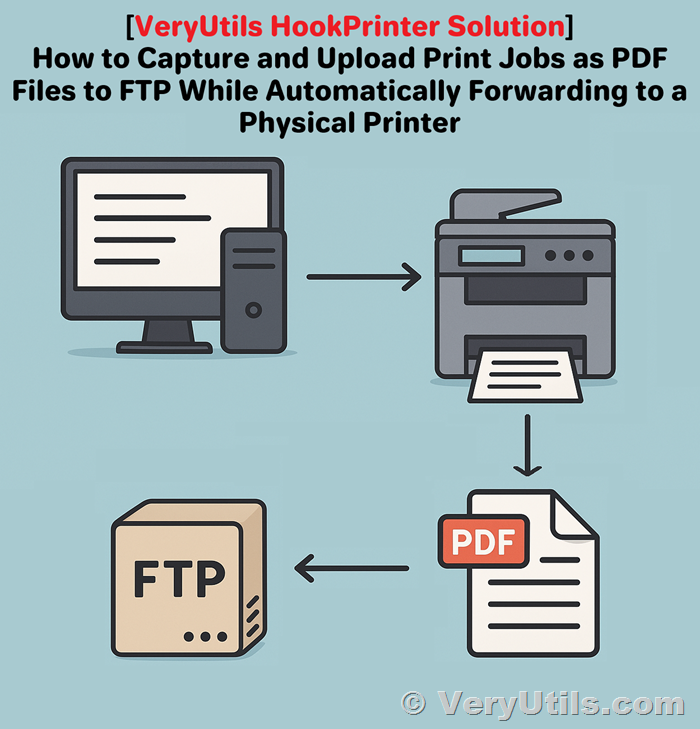
How to Capture and Upload Print Jobs as PDF Files to FTP While Automatically Forwarding to a Physical Printer with VeryUtils HookPrinter SDK

How to Capture and Upload Print Jobs as PDF Files to FTP While Automatically Forwarding to a Physical Printer with VeryUtils HookPrinter SDK

https://veryutils.com/hookprinter-sdk

A Real-World Use Case for HookPrinter SDK on Windows XP, 7, 10 and 11

Many companies rely on industrial systems that generate print jobs through third-party software, with no way to customize or modify how those jobs are created. In these environments, having a tool that can capture every print job, save it as a PDF, and automatically forward the job to the printer—without disrupting the workflow—is essential.

One such solution is VeryPDF HookPrinter SDK, which allows seamless integration into existing Windows environments to capture and manage print jobs. Below is a detailed overview of a real-world use case and how HookPrinter SDK fits in.


✅ Use Case Overview

A company approached us with the following scenario:

Environment: Six Windows laptops, each controlling a different industrial machine and connected to a local or network printer.

Operating Systems: Windows XP (SP3, 32-bit), Windows 7 (64-bit), and Windows 10 Enterprise (64-bit).

Software Constraints: Print jobs are initiated by third-party applications, which cannot be modified or reprogrammed.

Primary Goal:

1. Intercept all print jobs and save them as PDF files

2. Upload the captured PDFs to a remote cloud server via FTP

3. Forward each print job to the laptop’s default printer, maintaining an uninterrupted user experience

Two Critical Features Needed

To meet their objectives, the customer required the following features:

1. FTP Upload of Captured Print Files

Automatically send the intercepted PDF files to a cloud server using the FTP protocol.

2. Print Forwarding to Default Printer

Ensure that every print job, once captured, is sent to the printer so the end-user’s workflow remains unchanged.

❓ Frequently Asked Questions

✅ Does HookPrinter SDK support this type of behavior across Windows XP, 7, and 10?

Yes.

HookPrinter SDK works reliably across all the platforms mentioned:

Windows XP (SP3, 32-bit)

Windows 7 (64-bit)

Windows 10 Enterprise (64-bit)

Windows 11 (64-bit)

The SDK can capture print jobs from any application without requiring changes to the third-party software generating them.

✅ Does the free trial version allow us to test this full workflow?

Partially.

The trial version of HookPrinter SDK lets you test the basic print job capture functionality—saving printed content as PDF files.

However, the two essential features—FTP upload and print forwarding—are not included in the trial. These capabilities require a custom-built extension to the SDK.

✅ Can we get FTP upload and print forwarding developed for our environment?

Yes.

We can provide a fully integrated solution that includes:

Automatic FTP upload of each PDF to your server

Transparent forwarding of the print job to your local or network printer

These features will be tailored to your setup to ensure seamless performance across all six workstations and operating systems. Please contact us for a quote for this custom development.

Next Steps

If you're evaluating HookPrinter SDK for your industrial workflow:

1. Try the free version to confirm that it can reliably capture print jobs as PDF files on your systems.

2. Contact us if you would like to move forward with enabling FTP upload and print forwarding.

We will be happy to provide a quote and discuss implementation details.

Contact Us

For pricing, custom development inquiries, and technical support, please reach out to:

VeryPDF Support Team

https://support.verypdf.com/

By combining the powerful print interception features of HookPrinter SDK with customized FTP and print forwarding modules, you can streamline document capture and maintain a smooth printing workflow without modifying your existing software stack.

Let us help you build a solution that works quietly and efficiently in the background—so your team doesn’t even notice it’s there.

Tuesday, May 27, 2025

How to Stop PDF Document Sharing Online Without Compromising Data Privacy and Security

How to Stop PDF Document Sharing Online Without Compromising Data Privacy and Security

https://drm.verypdf.com/

Discover how to protect and control your PDFs online using VeryPDF Cloud DRM Protector without giving up security or flexibility.

Every time I sent a client a PDF contract, I felt like I was handing them a stack of papers with no lock.

I couldn’t tell who printed it, who forwarded it, or worse—if it ended up in the wrong hands.

It was like playing Russian roulette with sensitive data.

Sure, you can slap a password on a PDF. But let’s be real: how hard is it to share a password or strip security with the right tools?

I needed something better. Something that didn’t just “secure” my PDF but controlled it after I sent it.

That’s when I found VeryPDF Cloud DRM Protector.


What is VeryPDF Cloud DRM Protector?

It’s like a digital bouncer for your PDF files.

It doesn’t just lock the front door—it follows the file everywhere and controls what users can actually do with it.

I’m talking about stopping:

Forwarding

Copy-pasting

Screenshots

Printing

Access after a certain date or number of views

This isn’t your grandma’s PDF password protection. This is enterprise-grade, government-level encryption with real-time revocation powers.


Who Really Needs This?

If you're sending confidential documents and you must keep control, this is for you.

Law firms sending sensitive case files

HR departments sharing employment contracts or salary info

Startups distributing pitch decks and internal reports

Authors and eLearning providers protecting IP from piracy

Freelancers and consultants sending client deliverables they don’t want leaked

Honestly, anyone who values privacy, compliance, and control can benefit.


Here’s How It Changed the Game for Me

Before VeryPDF, I used passwords and relied on hope.

After VeryPDF, I had a control panel that let me lock, track, and revoke access like a boss.

Here’s what blew my mind:


1. Expiry Dates That Actually Work

I send proposals that are valid for 10 days. Now, I set the PDF to self-destruct on day 11.

No manual follow-up. No “Sorry, I didn’t see it in time—can you resend?”

It’s either on time or not at all. You can even expire by:

Number of views

Number of prints

Time since first open

Game-changer.


2. Revoke Access Even After It’s Been Downloaded

Let’s say you sent a PDF, then had second thoughts.

With one click, I can cut off access—immediately, no matter where that file ended up.

A rogue ex-employee? Revoke access.

Client changed their mind on a deal? Revoke access.

Total control, even after delivery.


3. Lock Files to Specific Devices and Locations

Someone forwards your PDF to a friend?

Tough luck—if their device isn’t on the whitelist, they can’t open it.

I had a situation where a competitor got hold of one of my documents (long story).

After switching to device-locking with VeryPDF, that hasn’t happened again.

You can lock by:

Device ID

IP address

Geo-location

It’s airtight.


4. Add Dynamic Watermarks Automatically

No more manually stamping names or dates on pages.

VeryPDF does it for you—per user.

So when Bob from Finance prints a doc, his name, email, and company are burned into the page.

That little nudge of accountability? Stops leaks cold.

It supports:

Date/time

User name

Email address

Company name

You don’t even have to think about it—just set it once.


5. Track Everything in Real Time

You ever wonder if someone actually opened your document?

With VeryPDF, you’ll know:

Who opened it

When

On what device

Whether they printed it

How many times

It’s like having a built-in analytics dashboard for your PDFs.

You can even log all interactions for audit or compliance purposes.


Why It’s Better Than the Alternatives

I’ve tried some of the other big-name DRM tools.

But they all fell into one of three traps:

1. Too complicated to use

2. Only worked on certain platforms

3. Didn’t let me revoke files once downloaded

VeryPDF?

None of those issues. It’s cloud-based, so there’s no clunky desktop software.

Plus, it doesn’t force me to jump through 10 steps just to lock down a single doc.

I protect it once, then customise access per user. Done.


Bonus: It Doesn’t Compromise User Privacy

A lot of DRM tools demand crazy levels of user data.

VeryPDF keeps it simple. You don’t need to compromise your client’s trust just to protect a file.

And yeah, the encryption is the same level used by the US government.

You’re not just protecting—you’re fortifying.


What Problems This Solves

Sharing PDFs without fear of leaks

Ensuring confidential docs expire on time

Preventing unauthorised downloads, edits, screenshots, and printing

Protecting intellectual property and increasing revenue

Staying compliant with privacy and audit requirements

I’ve saved hours chasing files, lost zero sleep over leaked docs, and impressed more clients by handling privacy seriously.

That peace of mind? Worth every penny.


My Verdict

If you’re dealing with any sensitive PDF files—client reports, training materials, contracts, product specs—you need VeryPDF Cloud DRM Protector.

Not want. Need.

You’ll control how your documents are viewed, printed, or shared.

And more importantly, you can take it all back if you have to.

I highly recommend giving it a shot.

Start your free trial here: https://drm.verypdf.com/


Custom Development Services by VeryPDF

Sometimes off-the-shelf isn’t enough. That’s where VeryPDF’s custom dev services come in.

They build tailored solutions for PDF processing across Windows, macOS, Linux, and server environments.

From virtual printer drivers that convert print jobs into secure PDFs, to OCR, barcode generation, layout analysis, and digital signing—they’ve got it covered.

Need to intercept Windows API calls or analyse PRN, PCL, PostScript, or Office docs?

They do that.

Want to deploy barcode-enabled document workflows or custom DRM systems for your company?

They do that too.

They work in Python, C++, C#, Java, HTML5, Windows API, and more.

If you’ve got a complex doc-handling problem, hit them up at http://support.verypdf.com/


FAQs

1. Can I stop someone from forwarding my PDF?

Yes. With device-locking and user-specific licensing, forwarded files won’t open on unauthorised devices.

2. What happens if someone tries to screenshot the document?

VeryPDF blocks screen grab tools and even screen sharing through apps like Zoom or WebEx.

3. Can I set a document to expire after 3 days?

Absolutely. You can expire by date, number of views, number of prints, or time since first open.

4. Will I know if someone prints or views my file?

Yes. You’ll get logs of every view and print, including device and time data.

5. Does it work on macOS and Windows?

Yes. It’s cloud-based and works across platforms, making it ideal for remote and hybrid teams.


Tags/Keywords

PDF DRM, prevent PDF sharing, secure PDF files online, digital rights management PDF, expire PDF documents, PDF anti-copy solution, stop printing PDFs, protect PDF intellectual property, cloud-based DRM software, track PDF usage logs


VeryPDF / VeryDRM Launches Advanced DRM Solution for PDF, Image, Video and Audio Content Protection, Preventing Unauthorized Sharing and Expanding Secure Digital Media Control

VeryPDF / VeryDRM Launches Advanced DRM Solution for PDF, Image, Video and Audio Content Protection, Preventing Unauthorized Sharing and Exp...